Free & open source ยท Windows 10 / 11

Spotify,
under glass.

Spotify on Windows, made to look the way you want and to stay out of your way. See-through glass in your own colours, a mini player or a bar on the edge of your screen, and it steps aside the moment you start a game.

Unofficial ยท needs Spotify Premium ยท updates itself

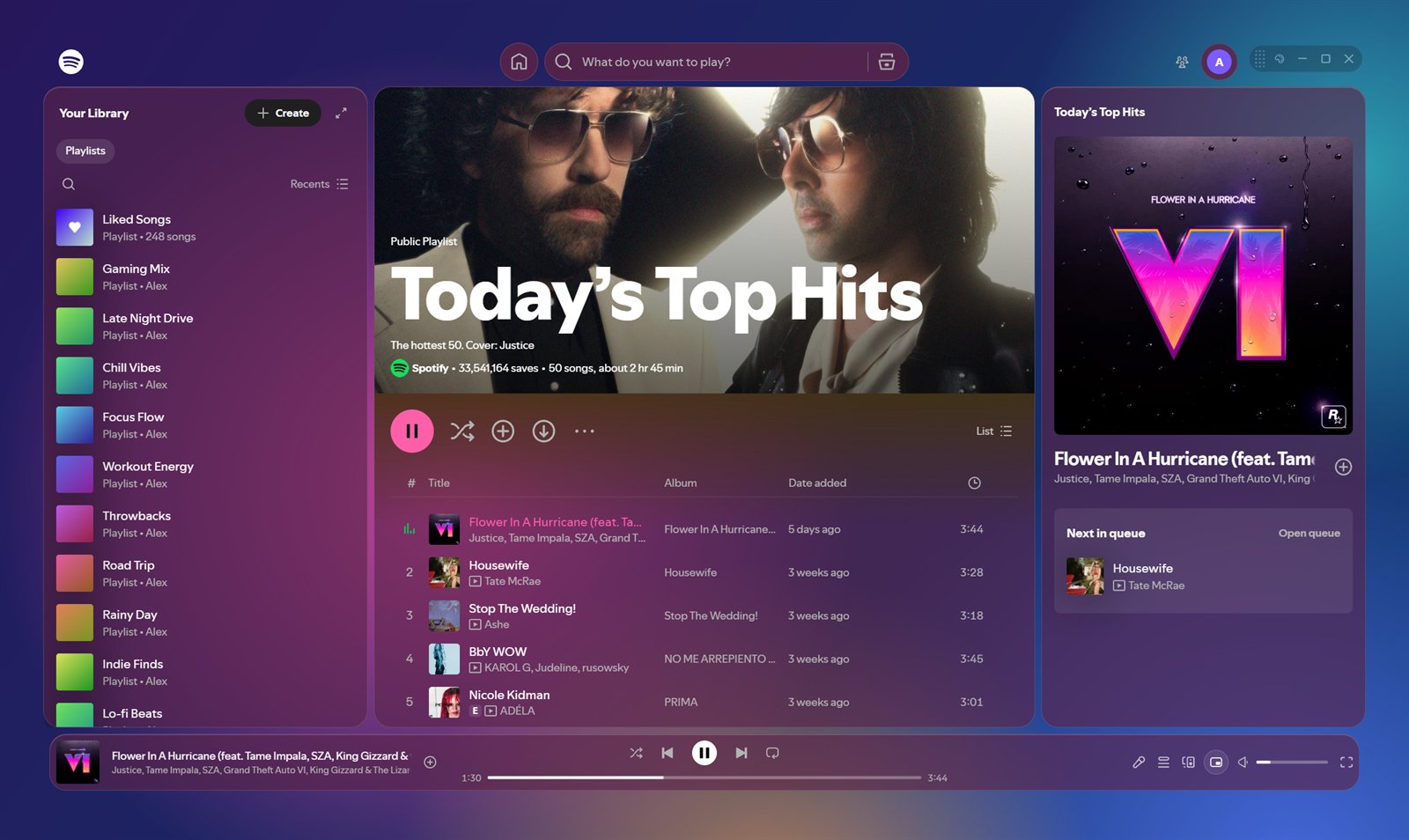
One gradient flows across the whole window, the search box, the mini player and the bar.
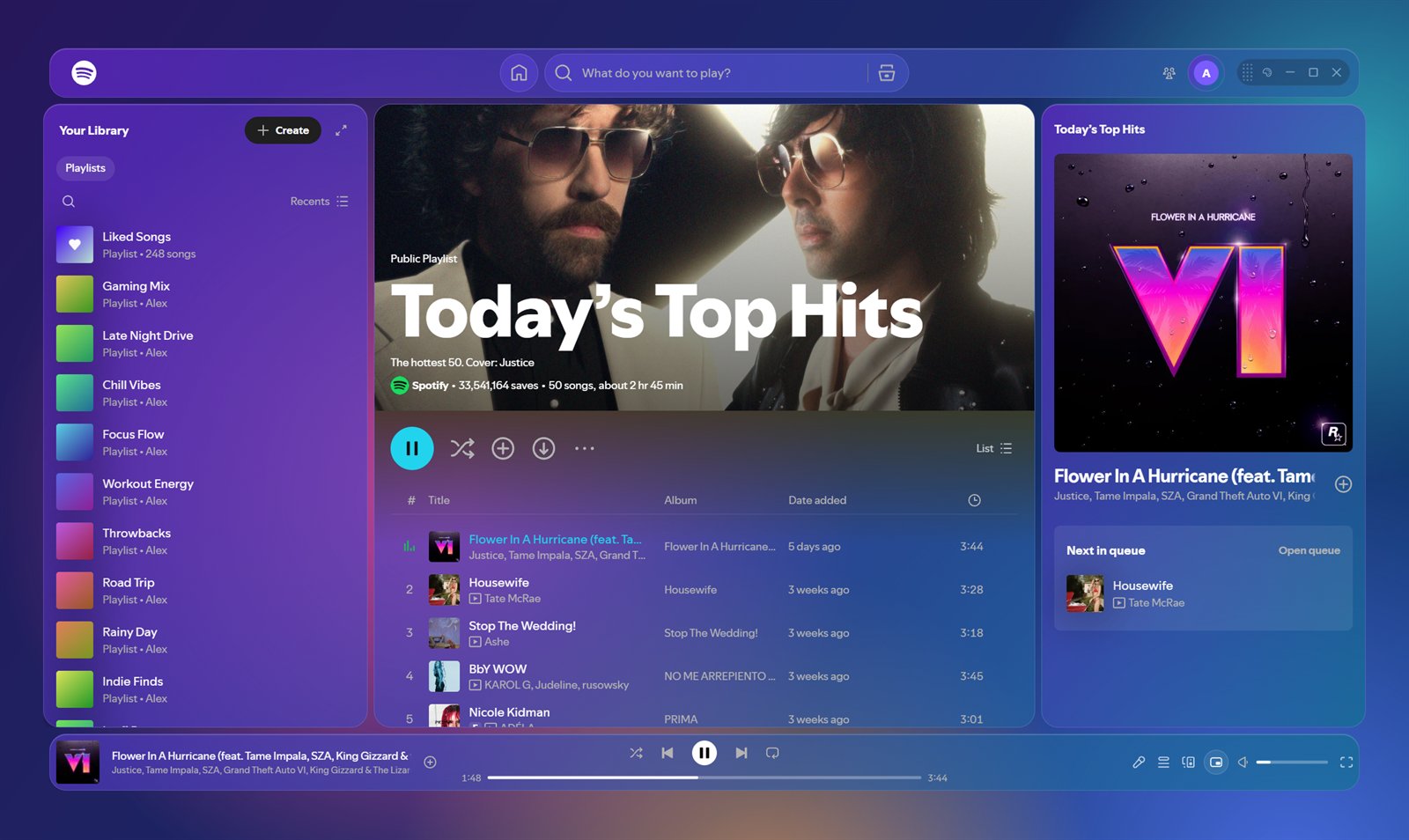
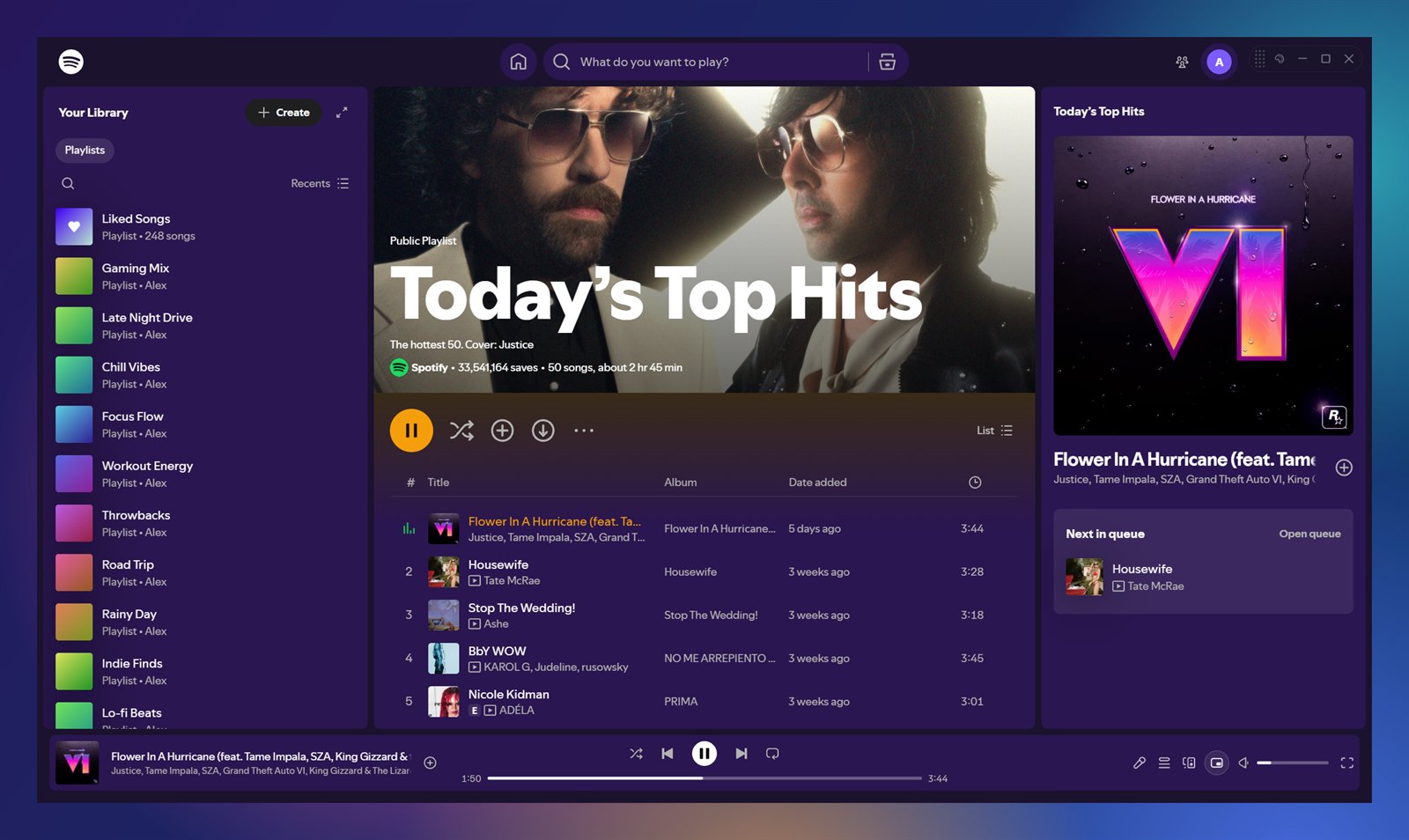
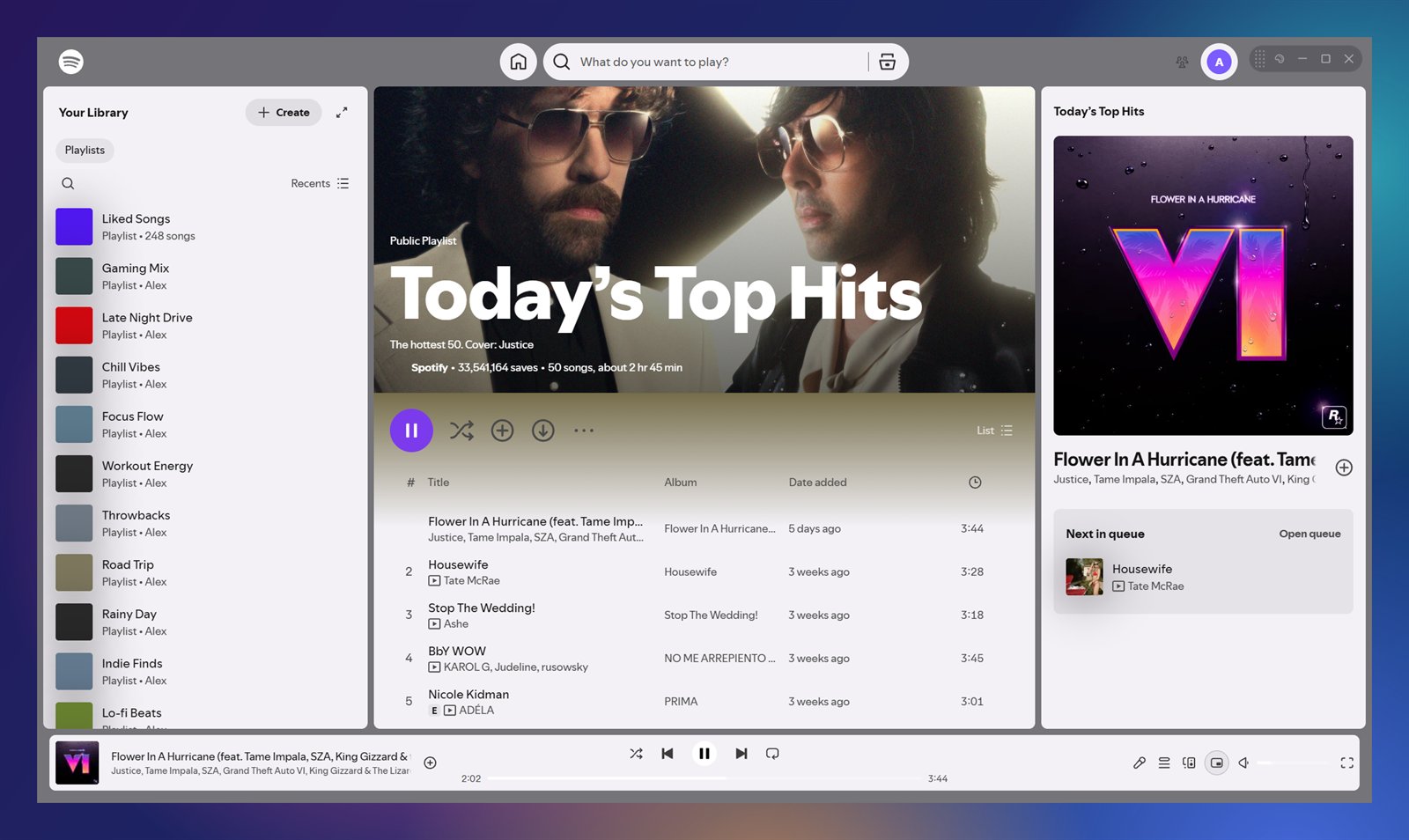
Glassify with a purple to blue gradient, see-through panels and a glass top bar Glassify in the Glass look, pink see-through panels Glassify in the Solid look, a normal purple window Glassify in the Light look, flat light colours
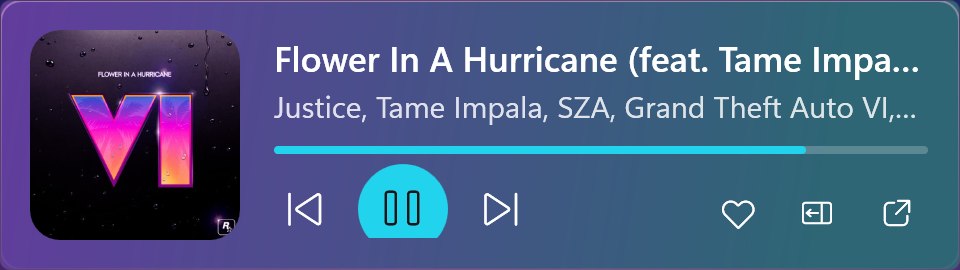
The Glassify mini player
Why Glassify

It's still Spotify. Just yours, and out of the way.

Glassify runs Spotify's own web player, so your library, playlists, Premium and everything else work exactly as usual. What changes is how it looks and how it behaves around everything else you do.

๐ŸŽจ
Make it look like yoursSpotify's app looks the same for everyone. Glassify puts it under glass in your colours, a gradient, or a calm solid look.
๐ŸชŸ
Keep it in reach, not in the wayFold it into a small player that floats on top, or a bar on the edge of your screen. Minimize or close it and the music keeps going there.
๐ŸŽฎ
Built around gamingStart a fullscreen game and Glassify hides, drops to low priority and leaves a click-through player. Close the game and it comes back.
Your colours

Make it look like yours.

Pick any panel colour, or blend two into a gradient at any angle with a balance slider. Set how see-through the glass is, choose your own highlight instead of Spotify green, and float a glass bar behind the search box. Light colours automatically get dark text, so it always stays readable.
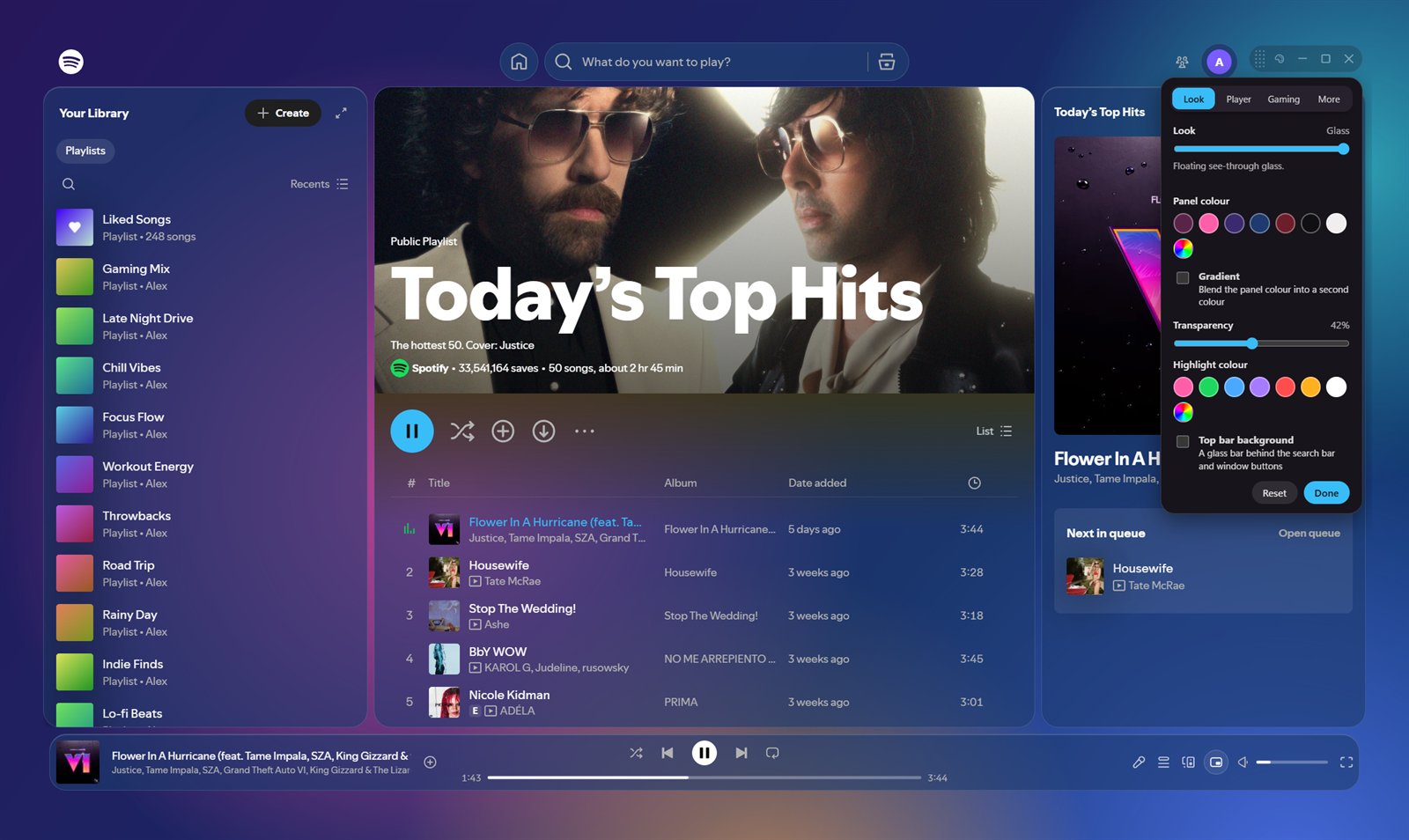
Two-colour gradient Highlight colour Transparency Glass top bar
The Glassify settings panel open on the Look tab
The player

One player. Two shapes.

Shrink Glassify into a small card that floats on top, or dock it as a bar on any edge of any screen. Windows make room for the bar like they do for the taskbar. Ctrl+Alt+B switches between them.
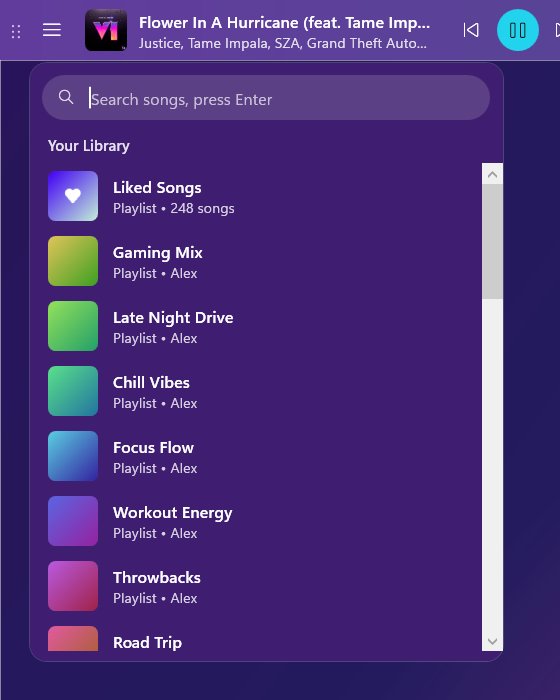
The bar's menu listing a library
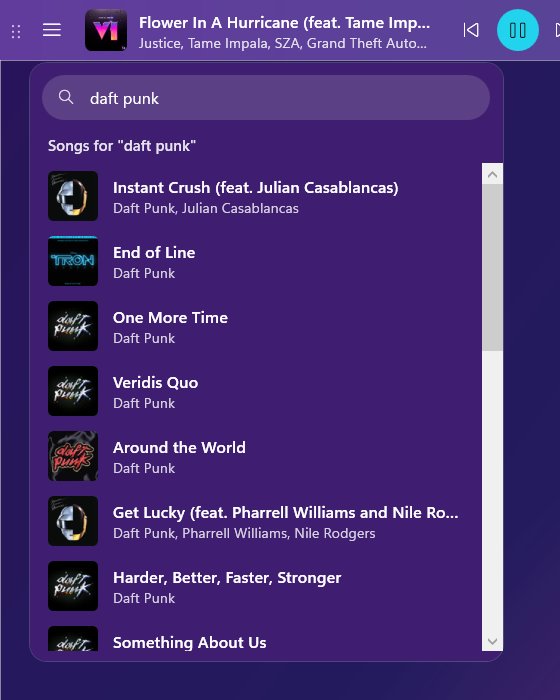
Searching songs from the bar's menu
The mini player, wide
The bar docked to the top of the screen: song, timeline, next in queue and recently played

The bar: the song, a timeline with the like button, next in queue and your recently played playlists.

Gaming

Starts a game? Glassify steps aside.

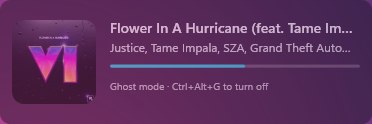
The moment a fullscreen game opens, Glassify hides its window, keeps only the player and drops to low priority so your game gets the computer. Close the game and everything comes back.
๐Ÿ‘ป
Ghost mini playerSee-through and click-through, so it never steals a click in the middle of a fight. Ctrl+Alt+G any time.
๐ŸŽฏ
Knows what's a gameBrowsers, fullscreen videos and screenshot tools don't set it off.
โŒจ๏ธ
Hands stay on the keyboardMedia keys and Ctrl+Alt shortcuts for play, skip, like and volume, from inside any game.
The ghost mini player Clicks go straight through to your game
In the background

Quick to open. Quiet while you do other things.

When Glassify isn't in front, or a game is running, it drops to low priority so your other apps and games come first. Because it runs Spotify's web player, it uses about as much memory as a browser tab playing Spotify: around 500 MB on our test PC.

~3 s
from launch to ready, signed in
0.4%
CPU while minimized and playing
5 s
to install an update, music still playing

Measured on our test PC; your numbers will vary.

Everything it does

The whole list, in its own settings.

These are the same four tabs you'll find behind the gear in Glassify.

Glass, Solid or LightFloating see-through glass, a normal solid window, or the lightest look of all: flat colours, low priority, memory saver.
Gradient panelsTwo colours, any angle, a balance slider. One gradient across the whole window, followed by the mini player and bar.
Transparency and highlight colourChoose how see-through the glass is and the colour of play buttons and progress bars.
Glass top barAn optional bar behind the search box and window buttons, matching your panels or in its own colour.
Mini player, any sizeAlways on top, with cover, controls, like and seek. Drag any edge; tall gives a big cover. Scroll for volume.
Bar on any edge of any screenTop, bottom, left or right. Shows next in queue and recently played; on the side it becomes a sidebar.
Library and search in the barOpen its menu to play anything from your library or search for a song.
Minimize or close to the playerThe dash and the ร— leave the player running. Quit from the icon by the clock.
Automatic game modeFullscreen game starts: main window hidden, player shown, low priority. Game closes: everything back.
Ghost mini player in gamesSee-through and click-through while you play, so it never blocks a click.
Automatic updatesChecks when it starts and every 2 hours, installs in seconds, never during a game. Your login and settings stay.
Song-change popupA small popup with the cover when the song changes and Glassify isn't in front.
Start with WindowsOptional, and it can start straight into the mini player.
Crash recoveryIf Spotify's page crashes, Glassify reloads it and keeps playing.
Show / hide the playerCtrl Alt M
Mini player โ†” barCtrl Alt B
Ghost mini playerCtrl Alt G
Like the songCtrl Alt L
VolumeCtrl Alt โ†‘ โ†“
Play, skip, backMedia keys
Install

Three steps, then it updates itself.

DownloadGet the zip from the latest release.
ExtractUnzip it somewhere you can write to, like Documents or Downloads. Not Program Files.
RunOpen Glassify.exe and sign in to Spotify. If Windows says it protected your PC, choose More info, then Run anyway.

Needs Windows 10 or 11 and Spotify Premium. The Edge WebView2 runtime comes with Windows 11.

Put your music under glass.

Free and open source. If you like it, a star on GitHub helps other people find it.